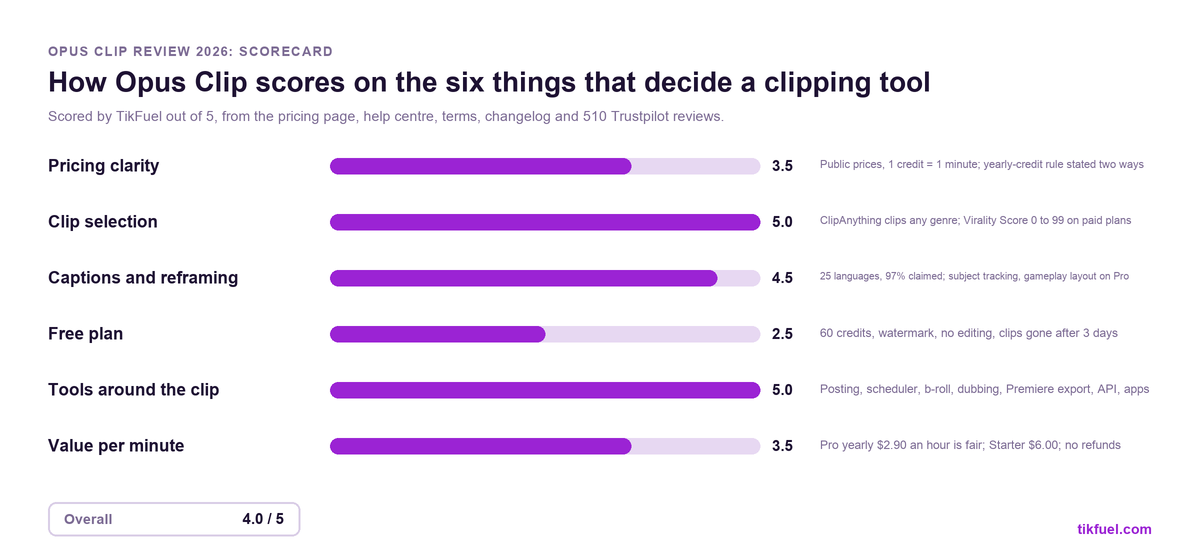
Opus Clip is an AI clipping tool that takes a long video, finds the moments it thinks will hold attention, and turns them into captioned vertical clips with a virality score next to each, from a free plan with 60 credits a month to a Pro plan at $14.50 a month billed yearly. It is the most capable product in the category and the one with the most built around the clip: direct posting, a scheduler, b-roll, dubbing, an API and mobile apps. After going through its pricing page, its help centre, its terms, its changelog and 510 Trustpilot reviews, our verdict is 4.0 out of 5: the best clipping tool for footage that is not a talking head, and for anyone who wants the clip, the post and the schedule in one place, with three things to know before you pay. The free plan’s clips vanish after three days, the Starter plan has no yearly price and costs twice what Pro does per minute, and Opus refunds nothing.
This is an independent review. We sell TikTok and Instagram followers, likes and views, which is a different product. Opus Clip has not reviewed or approved the text, every price, limit and policy below is taken from Opus Clip’s pricing page, help centre, terms and changelog or from named third-party sources, all checked on 22 October 2026, and the criticism is ours. The links to Opus Clip are plain links. The embedded videos are other creators’ own work, chosen because they show the tool on real footage.
Opus Clip at a glance
- What it is: a web and mobile app that clips long video into short vertical clips, scores them, captions them, reframes them and posts them.
- Price: Free with 60 credits a month. Starter $15 a month, monthly only, 150 credits. Pro $29 a month or $14.50 a month billed yearly ($174) for 300 credits a month. Business on quote.
- What a credit is: one minute of the video you import, whether or not you keep any clips from it. Posting a clip to X costs 3 credits extra.
- Max upload: 10 hours of video; 10GB per file on Free and Starter, 30GB on Pro.
- Clip selection: ClipAnything, which Opus sells as the only model that clips “vlogs, gaming, sports, interviews, explainer videos”, plus a Virality Score from 0 to 99 on paid plans.
- Captions: 25 languages listed, “over 97% accuracy” claimed.
- Posting: to TikTok, Reels and Shorts from Starter; scheduler, six connections, Pinterest, Threads and Bluesky on Pro.
- Refunds: none. The terms say Opus “will not refund any fees that you have already paid”.
- Public ratings: 4.0 on Trustpilot from 510 reviews, 64% five-star and 20% one-star; 4.6 on G2 from 123; 4.9 on the App Store from 8,300 ratings; 2.8 on Google Play from 321.
- Best for: creators and small teams clipping more than talking heads, posting daily, and willing to pay yearly for Pro.
What Opus Clip is
Opusclip Inc. is a Mountain View, California company founded in January 2022 by Young Zhao, who runs it, and Grace Wang. It raised a $30 million round in August 2024, the same day it launched ClipAnything, and a further $20 million from SoftBank Vision Fund 2 in March 2025 at a reported $215 million valuation. Its about page claims 20 million creators and businesses, 440 million clips and 160 billion views. In March 2025 the press figure was 10 million creators and 172 million clips. Those are the company’s own numbers; what they tell you is that this is the biggest product in its category by a distance, which matters for one practical reason: the virality model has seen more clips perform than anyone else’s.
The product started as a one-trick tool, paste a YouTube link and get clips back, and has grown into a stack. Underneath is still the clipper. Around it now sit a scheduler, direct posting to seven platforms, AI and stock b-roll, dubbing, speech cleanup, an editor with export to Premiere and DaVinci, a video-editing API, a Zapier integration, an official Claude connector added in September 2026, and an “Agent Opus” layer launched in late 2025 that is meant to take a brief and return a finished video. The changelog for September and October 2026 alone lists ten shipped features. It is a company moving fast, and some of the rough edges in the reviews are the cost of that.
How it works, step by step
- Import. Paste a YouTube link, or pull from Google Drive, Vimeo, Zoom, Rumble, Twitch, Facebook, LinkedIn, Twitter, Loom, Riverside or StreamYard, or upload a file. On Starter and up you can connect a verified YouTube channel and have new uploads imported automatically. The meter starts here: a 60-minute video costs 60 credits the moment it is imported.
- Tell it what to find, or do not. By default ClipAnything scans the video. On paid plans you can give it a prompt (“every time the guest disagrees”), search by topic, and set a target clip length and a timeframe within the source. On Business you can re-prompt to refine the results.
- Read the list. Each clip comes back with a Virality Score from 0 to 99, built on four parts Opus calls hook, flow, value and trend. Free users do not see the score.
- Edit. Captions in 25 languages with keyword highlighting and emoji, auto-reframe that tracks a moving subject, b-roll, a dynamic layout that switches between speakers, a screenshare layout for gameplay and tutorials. The Free plan has no editing at all.
- Export or post. Download at the highest resolution available, send the timeline to Premiere or DaVinci on Pro, or post directly to TikTok, Reels and Shorts from Starter. Pro adds a scheduler, six social connections and multiple profiles per platform.
- Watch the clock. On Free, clips stop being exportable after three days. On Starter, media expires after 29 days. On Pro there is no export limit and 100GB of storage.
Processing is not instant. Independent testing on a 90-minute podcast put Opus at roughly 25 minutes to a first usable clip, the slowest of the tools tested, against four to ten minutes for the fastest. For a creator batching once a week that is irrelevant. For one clipping a live stream to post the same hour, it is not.
Pricing in detail
Opus has four tiers, and the thing to understand before comparing them is that the price buys credits, and a credit is a minute of source video. Nothing else on the page changes that arithmetic.
| Plan | Monthly | Yearly | Credits | Cost per hour of source | What you get, and do not |
|---|---|---|---|---|---|
| Free | $0 | $0 | 60 a month | $0 | 1080p, watermark, no editing, no Virality Score, no posting; clips not exportable after 3 days |
| Starter | $15 | none; monthly only | 150 a month | $6.00 | Virality Score, captions, auto-post to TikTok, Reels, Shorts, 1 brand template, no watermark, 3 AI and 3 stock b-roll clips a month; media expires after 29 days |
| Pro | $29 | $14.50 ($174) | 300 a month per pack, stackable to 15 packs | $5.80 monthly, $2.90 yearly | Scheduler, 6 social connections, 2 seats per pack, unlimited stock b-roll, 50 AI image b-rolls a day, dubbing, export to Premiere and DaVinci, API, Zapier, 100GB storage, no export limit |
| Business | Custom | Custom | Quote | 4K scheduling and download, unlimited seats, API and custom integrations, SSO, priority processing, a dedicated Slack channel | |
Prices from opus.pro/pricing on 22 October 2026. The homepage also advertises a 7-day free trial of the paid plans with 90 minutes of processing, no card required.
Read the Starter row twice. It is the plan most people buy first and the worst value on the page. It has no yearly price, so an hour of source costs $6.00 against $2.90 on Pro yearly. Two hours of podcast a week does not fit in 150 credits. If you are going to pay Opus at all, the decision is Pro yearly or nothing.
The credit rules are in the help centre, not on the pricing page. On monthly plans credits “expire in 60 days, so they roll over for one additional month”. On yearly plans the help centre says you “receive the full year’s worth of credits immediately upon purchase”, valid for twelve months, while the pricing page says 300 a month with a two-month rollover for the same plan. One of those is stale, and the difference matters if you have a back catalogue to clip in week one. Ask support in writing before you buy the year. If you cancel, remaining credits “expire at their original expiration date”. On-demand top-ups are new in 2026, which removes the old reason to over-buy packs.
4K is the other thing the page contradicts itself on. The comparison table reserves “4K schedule and download” for Business, while the help centre and the changelog say 4K export is “now available for Pro”, and only when the source is 4K. In practice Pro users report it working.
Refunds: none. The terms, effective 17 November 2025, say Opus “will not refund any fees that you have already paid”, and subscriptions renew “at the then-current non-promotional rate”, so a discounted first year does not carry into the second. Governed by California law with arbitration.
One price to verify yourself. A pricing tracker claims Opus raised Pro yearly to $233 ($19.43 a month) on 6 October 2026. The live pricing page, the App Store in-app price and three other trackers still showed $174 on 22 October. Either an A/B test or a regional price. Check the page in your own browser before you commit.
Clip selection: the reason to buy it
Every clipping tool can find the good bit of a podcast. A podcast has a transcript, the transcript says where the point is, and a language model can read it. What separates Opus from the field is what it claims for footage with no transcript worth reading.
ClipAnything is pitched as “the only AI clipping model that turns any genre, vlogs, gaming, sports, interviews, explainer videos, into viral clips in 1 click”. It reads visual scenes, audio and sentiment as well as words, so a goal, a reaction, a reveal in a vlog can be a clip without anyone saying anything. Independent tests agree that this is where Opus leads: one 2026 benchmark called its visual-scene mode “the strongest frame-aware selection workflow for non-talking-head content”, and another found its moment selection “the closest to usable” of nine tools on talking-head footage.
The Virality Score is the part people over-trust. It runs 0 to 99 and is built on hook, flow, value and trend, and it is only available on paid plans. The honest way to use it is as a sort order: the top three by score are where to start watching, not what to post unseen. The reviewer in the Short further down made exactly that point with the second-best clip Opus gave him.
Two limits. The score is scored on the clip Opus chose, so it will cheerfully rate a 45-second clip highly even though that length is the worst bracket on TikTok, which we come to below. And the tool needs a source: it does not generate, it extracts, and a dull hour yields thirty dull clips with confident scores.
Captions, reframing and the editor
Captions. Twenty-five languages are listed on the homepage (the pricing page says “20+”, the API page “over 20”, a blog post “30+”). Opus claims over 97% accuracy. Keyword highlighting and emoji are on all plans including Free; a brand vocabulary and automatic censoring of curse words are on Pro; speaker-coloured captions are on Business. Reviewers rate the captions as the strongest single part of the product, with the recurring caveat that callouts and highlights are “a little off the mark” and need a pass.
Reframing. ReframeAnything resizes to 9:16, 1:1 or 16:9 and, on Pro, tracks a moving subject rather than cropping the centre. There is a dynamic layout that switches between speakers and a screenshare or gameplay layout. One tester reported four of 76 clips needing a manual crop, which is a good number.
The editor. Text-based and timeline editing, filler and silence removal, speech enhancement (ten uses a day on Pro), AI voice-over, eye-contact correction, custom fonts, animated lower thirds and auto headline styles added in autumn 2026, and the Motion Studio for animated b-roll added in September. For a Pro user who wants the clip finished inside Opus, it is there. For a Free user, there is no editing at all: you export what the AI made or you do not.
B-roll. Three AI image clips and three stock clips a month on Starter, which is a sample. Fifty AI image b-rolls a day and unlimited stock on Pro, plus AI video b-roll generated by Agent Opus.
What is around the clip
This is the section that puts Opus first in our ranking of AI clipping tools, because for a creator posting every day the clip is maybe a third of the work.
- Direct posting to TikTok, YouTube Shorts and Instagram Reels from Starter.
- A scheduler on Pro, with six social connections, multiple profiles per platform, and Pinterest, Threads and Bluesky added in September 2026. Posting to X costs 3 credits a clip.
- Export to Premiere Pro and DaVinci Resolve on Pro, which is the feature agencies ask about and the one most clippers do not have.
- An API in beta on Pro: 30 requests a minute, up to 4 concurrent projects and 15 hours of video a month, a 10-credit minimum per project. Business gets 50 concurrent projects and custom integrations.
- Zapier up to 300 credits a month, an MCP connector and an official Claude connector, so a clipping run can be triggered from an assistant.
- Mobile apps on iOS and Android. The iOS app holds 4.9 from 8,300 ratings. The Android app holds 2.8 from 321, with reviews citing long uploads and failures; Opus’s own mobile page still says Android “isn’t available in your region” while the Play listing is live.
Nobody else in the category has all of these. Vizard has the API and the scheduler, Klap has the API and posting, Submagic has the API and posting, Riverside has the scheduler. Only Opus has the lot, plus the editor exports.
What customers say
Opus Clip’s Trustpilot profile holds a 4.0 TrustScore from 510 reviews: 64% five-star, 8% four, 4% three, 4% two and 20% one-star. That shape, a large happy majority and a fifth who are angry, is the shape of a product that works and a billing model people resent. G2 is kinder at 4.6 from 123 reviews, 82% five-star, with “time-saving”, “speed” and “captioning features” the most-tagged pros and “slow rendering” and “AI limitations” the cons.
The praise clusters on three things: it is close to one click (“almost like a one-click-and-go process”, a marketing director on G2), support replies fast (“almost instant replies”, Trustpilot, October 2026), and it saves the afternoon of scrubbing.
The complaints cluster on three as well.
- Credit pressure. “Every time you turn around, they want you to buy more credits. Constant pop-ups.” (Trustpilot, 6 October 2026.) Metering by the minute means a long source eats the month, and the product reminds you.
- Cancelling. One reviewer describes “16 emails to cancel and they’re still trying to charge me”, with most replies coming from an AI support bot (Trustpilot, 26 September 2026). Combined with the no-refund terms, this is the risk to manage: cancel from the account page well before renewal and keep the confirmation.
- Output accuracy and speed. Captions and callouts needing fixes, slow rendering, and on Android, uploads that fail.
Here is how two creators put it in under a minute each. The first has 240,000 views and is about the mistake most users make with the settings. The second shows an actual clip Opus ranked second-best from a real video and asks whether that is worth paying for.
The setting Opus gets wrong by default
Opus, like every tool in the category, defaults to clips of roughly 30 to 60 seconds. Our analysis of two large datasets in how long a TikTok should be found that bracket is the worst length on the platform: under 30 seconds earns the best engagement rate, over a minute earns the most reach and watch time, and 30 to 60 earns neither while being the second most common length posted.
Opus is the tool where this is easiest to fix, because the clip-length control is on the import screen from Starter up. Set it under 30 seconds for a reaction, a punchline or a single point, or let it run past 60 for a complete argument. Then ignore the Virality Score’s preference for the middle, because the score is rating the clip it chose, not the length the feed rewards.
Pros and cons
Pros
- The only clipper built for footage without a talking head.
- Virality Score with four named components, useful as a sort order.
- Captions in 25 languages with brand vocabulary and censoring.
- Subject-tracking reframe and layouts for screenshare and gameplay.
- Direct posting from the cheapest paid plan; scheduler, b-roll, dubbing, Premiere and DaVinci export, API, Zapier and Claude connector on Pro.
- Pro yearly is a fair $2.90 per hour of source, and credits roll over.
- Largest product in the category, shipping features monthly.
Cons
- Free plan is a demo: watermark, no editing, no score, clips gone in three days.
- Starter has no yearly price and costs $6.00 an hour, twice Pro.
- Metered by the minute imported, not by clips kept.
- No refunds, and renewals at the non-promotional rate.
- A fifth of Trustpilot reviews are one-star, mostly credit upsells and cancellation.
- Pricing page contradicts the help centre on yearly credits and on 4K.
- Slowest processing in independent tests.
- Android app rated 2.8.
Who Opus Clip is for
Use Opus Clip if your long video is a stream, a match, a vlog or anything else where the moment is visual rather than spoken; if you post daily and want clipping, scheduling and posting in one subscription; if you edit in Premiere or DaVinci and want the timeline handed over; or if you run clipping at volume through an API or Zapier.
Look elsewhere if your sources are podcasts and interviews and price matters (Vizard gives 600 credits for the same $14.50); if you want a free plan you can actually use rather than trial (Quso.ai, or 2short.ai’s 30 free minutes without a watermark); if your sources are under 45 minutes and you want the cheapest entry (Klap); if captions are the product (Submagic); or if you record on Riverside, where Magic Clips comes free.
Opus Clip vs Vizard
- Price per hour of source: Opus $2.90 on Pro yearly, Vizard $1.45 on Creator yearly. Same $14.50 a month, 300 credits against 600.
- Selection: Opus clips any genre with ClipAnything; Vizard is transcript-first and does not claim non-speech footage.
- Free plans: both 60 credits, watermarked, expiring in three days; Opus at 1080p with no editing, Vizard at 720p with full editor access.
- Export: Vizard 4K on paid plans; Opus 4K on Pro per the help centre, Business per the pricing page.
- Around the clip: both schedule and post; Opus adds Premiere and DaVinci export, dubbing, a Claude connector and mobile apps that Vizard also has.
- Reviews: Vizard 4.7 on Trustpilot from 2,522, 2% one-star; Opus 4.0 from 510, 20% one-star.
- Refunds: Vizard seven days if unused; Opus none.
Our ranking puts Opus first and Vizard second because the thing Opus does that nobody else does, clipping without a transcript, is a capability and not a price, and because the posting and export stack is deeper. On talking-head video at a budget, Vizard is the better buy and we say so in the ranking too.
How to get a good clip out of Opus Clip
- Pay yearly for Pro or stay on Free. Starter is the expensive way to buy the same minutes.
- Trim before you import. You pay per minute imported. Cut the intro, the ad read and the dead air first and the credits go twice as far.
- Set the clip length off the default. Under 30 or over 60, never the bracket in between.
- Use the prompt. “The moments the guest pushes back” beats letting the model guess, and it is what you are paying for over the free tools.
- Watch the top three by score, then rewrite the first line. The AI hook is generic. Our guide to TikTok hooks is the shortlist; the clip is finished in the first second and the feed reads watch time before anything else.
- Post native. Use the direct posting rather than downloading and cross-posting a watermarked file; we went through why in reposting TikToks on Reels.
- Put the renewal date in a calendar and cancel from the account page, not by email, if you are leaving. There are no refunds.
- Confirm the yearly-credit rule in writing before you buy the year, because the page and the help centre disagree.
And the clip is still raw material. Bought views, which we sell, make a clip look seen and do nothing for the next viewer’s decision to stay. The free lever is the length setting and the first line.
Frequently asked questions
How much does Opus Clip cost?
Free with 60 credits a month. Starter $15 a month, monthly only, for 150 credits. Pro $29 a month or $14.50 a month billed yearly ($174) for 300 credits a month, with packs stackable. Business is custom. One credit is one minute of source video.
Is Opus Clip free?
There is a free plan with 60 credits a month at 1080p, but the clips carry a watermark, there is no editing and no Virality Score, and the clips stop being exportable after three days. It is a demo of the paid product. There is also a 7-day free trial of the paid plans with 90 minutes of processing.
Is Opus Clip worth it?
On Pro yearly, yes, if your footage goes beyond talking heads or you want posting and scheduling in the same tool. On Starter, which costs $6.00 per hour of source, no; Vizard does the talking-head job for a quarter of that. Our verdict is 4.0 out of 5.
Does Opus Clip refund?
No. The terms state that Opus will not refund fees already paid, and subscriptions renew at the non-promotional rate. Cancel from the account page before the renewal date.
What is the Opus Clip Virality Score?
A 0 to 99 score on each clip built on four components Opus calls hook, flow, value and trend. It is available on Starter and Pro, not on Free. Treat it as a sort order for which clips to watch first, not as a forecast.
Does Opus Clip post directly to TikTok?
Yes, to TikTok, YouTube Shorts and Instagram Reels from the Starter plan. Pro adds a scheduler, six social connections, multiple profiles per platform, and Pinterest, Threads and Bluesky. Posting to X costs 3 credits per clip.
How long a video can Opus Clip handle?
Up to 10 hours. File size is capped at 10GB on Free and Starter and 30GB on Pro. Every minute imported costs one credit, so trim long sources before uploading.
Opus Clip or Vizard?
Opus if your footage is not a talking head or you want the deepest posting and export stack. Vizard if your sources are podcasts and interviews and you want twice the minutes for the same money, with 4K and the best reviews in the category.
Verdict
Opus Clip scores 4.0 out of 5 in our review and takes first place in our clipping-tools ranking for one capability nobody else sells, clipping footage that has no transcript, and for a stack around the clip that nobody else matches: posting, scheduling, b-roll, dubbing, editor exports, an API and apps.
The three things to go in knowing are that the free plan’s output disappears in three days, that Starter is the wrong plan to buy, and that there are no refunds. Pay yearly for Pro, trim what you import, change the clip length off the default, and it is the best tool in the category. Buy Starter monthly for a podcast and it is an expensive way to get what Vizard sells for half.
See Opus Clip’s current plans Compare the alternatives
Sources
- Opus Clip: pricing, homepage, about, terms of service, affiliate programme
- Opus Clip help centre: how credits are consumed, Virality Score, video length, API overview
- Changelog and funding: changelog, $30M round and ClipAnything launch
- Reviews: Trustpilot, G2, App Store, Google Play
- Independent testing: Reap’s nine-tool benchmark (processing times; note the author sells a competing tool), ScaleReach’s 30-day test (reframe accuracy)